Tutorial

Dynamic Flow – Query-Powered Carousels

Home / Tutorials / Dynamic Flow – Query-Powered Carousels

In this series

  1. 1

    Getting Started with Groundworx Core

    Level: Beginner Estimated reading time: 4 minutes
  2. 2

    Static Flow – Carousel With Inner-Block For Each Slide

    Level: Beginner, Intermediate Estimated reading time: 3 minutes
  3. 3

    Dynamic Flow – Query-Powered Carousels

    Level: Beginner, Intermediate Estimated reading time: 4 minutes
  4. 4

    Featured Posts – Query-Powered Grid & Flex Layouts

    Level: Beginner, Intermediate Estimated reading time: 4 minutes
  5. 5

    Filters – Interactive Filtering for WordPress Query Loop

    Level: Beginner, Intermediate Estimated reading time: 5 minutes
Series:

Dynamic Flow is the most powerful feature in Groundworx Core—a query-powered carousel that automatically displays your posts, products, or any custom post type.

Unlike static carousels where you manually add each slide, Dynamic Flow pulls content dynamically from your database. It works similar to the WordPress Query Loop block—but displays your content in a carousel instead of a grid or list. Add new posts, and they automatically appear.

Why Dynamic Flow?

The Problem with Static Carousels: Traditional carousels require you to manually add each slide. When you publish new content, you have to remember to update the carousel.

The Dynamic Flow Solution: Dynamic Flow connects to your WordPress query system. Define what content you want, and the carousel automatically stays current.

Adding a Dynamic Flow Block

  1. Edit a page or create a new one
  2. Click + to add a block
  3. Search for “Dynamic Flow”
  4. Insert the block

Orientation – Horizontal (default) or vertical scrolling

Direction – Left-to-right or right-to-left for RTL language support

Flow Template Settings
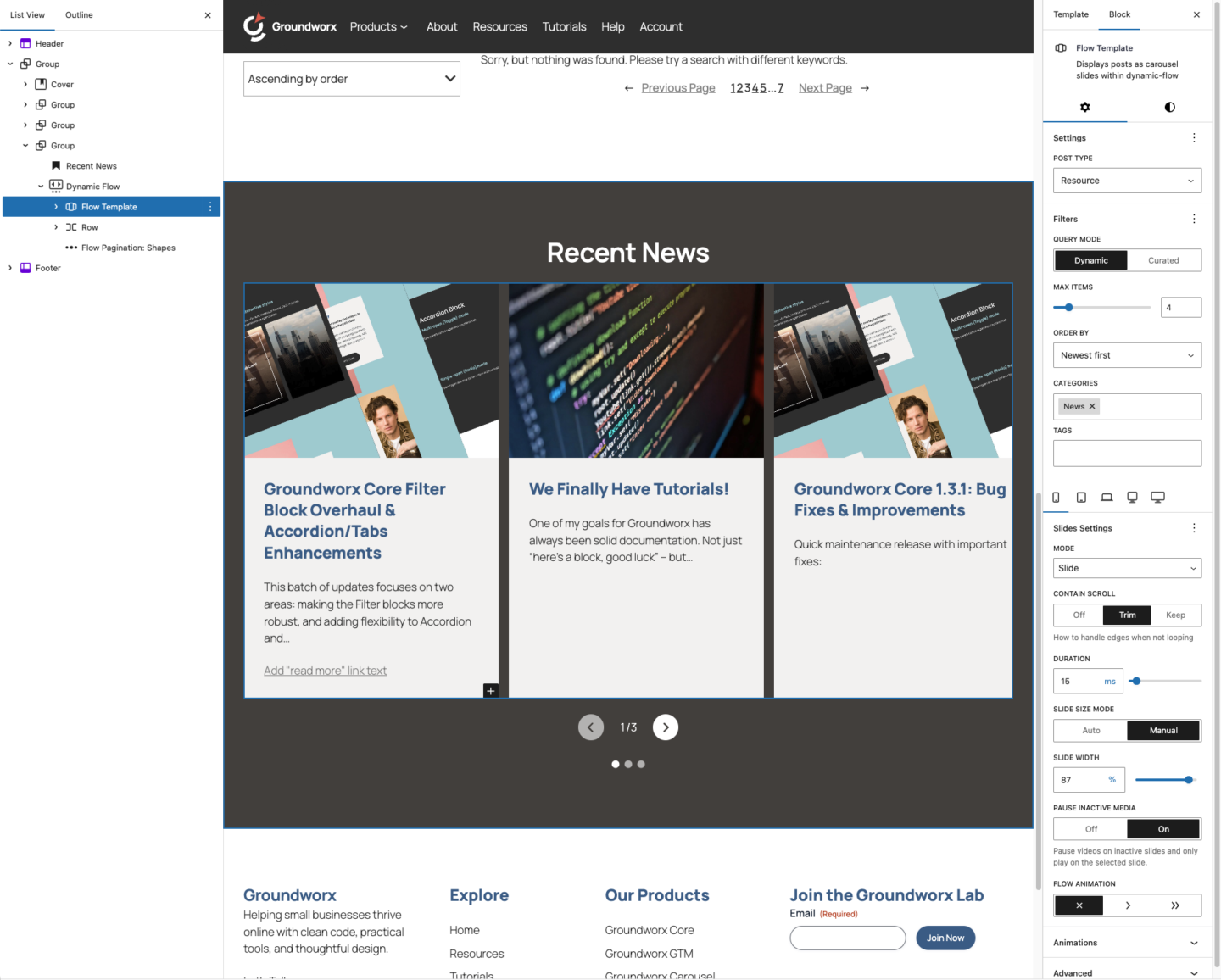
Configuring Your Query Settings

Dynamic Flow supports two query modes:

Dynamic Mode – Automatically pulls content based on your filters. New posts appear automatically.

Curated Mode – Hand-pick specific posts and arrange them in your preferred order.

First, select your Post Type—Posts, Pages, Products (WooCommerce), or any custom post type registered on your site. Then choose your Query Mode: Dynamic or Curated.

Automatically pulls content based on filters. New posts appear automatically without editing the carousel.

Max Items – How many items to display (1-20)

Order By:

  • Newest first / Oldest first
  • A → Z / Z → A
  • Last modified
  • Menu order
  • Most comments
  • Random
  • Author
  • Post ID

Taxonomies – Filter by categories, tags, or custom taxonomies

Date – Last 7 days, 30 days, 90 days, 6 months, or 1 year

Authors – Show posts from specific authors

Keyword – Search by keyword in title or content

Parents – For hierarchical post types, filter by parent

Formats – Filter by post format (standard, video, gallery, etc.)

Hand-pick specific posts and arrange them in your preferred order.

Search for posts by title, add them to your list, then use the up/down arrows to reorder. Remove posts with the X button.

Choose your carousel Mode: Slide, Loop, or Fade. Available at default (mobile) all other breakpoint:

Standard carousel that stops at edges. Best when you want users to see there’s a beginning and end.

Contain Scroll – How to handle edges:

  • Trim – Remove partial slides at edges
  • Keep – Keep all snap points
  • Off – No containment

Slides to Show – Number visible at once (1-10), or set a manual pixel width

Slides to Scroll – How many slides advance per navigation

Duration – Animation speed (10-60ms)

Pause Inactive Media – Automatically pause videos on inactive slides

Flow Animation:

  • Autoplay – Auto-advance at an interval (1-10 seconds) with optional pause on hover
  • Auto Scroll – Continuous smooth scrolling (Crawl, Normal, Brisk, Fast, Rapid)

No Overflow – Hide navigation when all slides are visible, with optional alignment

Infinite scrolling that wraps around seamlessly. Best for continuous browsing.

Slides Justification – Align active slide to Start, Center, or End

Slides to Show – Number visible at once (1-10), or set a manual pixel width

Slides to Scroll – How many slides advance per navigation

Duration – Animation speed (10-60ms)

Inactive Slide Effects – Apply visual effects to non-active slides:

  • Scale – Shrink inactive slides (50-100%)
  • Opacity – Fade inactive slides (0-100%)
  • Saturation – Desaturate inactive slides (0-100%)

Pause Inactive Media – Automatically pause videos on inactive slides

Flow Animation:

  • Autoplay – Auto-advance at an interval (1-10 seconds) with optional pause on hover
  • Auto Scroll – Continuous smooth scrolling (Crawl, Normal, Brisk, Fast, Rapid)

No Overflow – Hide navigation when all slides are visible, with optional alignment

Crossfade transition between slides. Always shows one slide at a time.

Duration – Animation speed (10-60ms)

Pause Inactive Media – Automatically pause videos on inactive slides

Flow Animation:

  • Autoplay – Auto-advance at an interval (1-10 seconds) with optional pause on hover
  • Auto Scroll is not available in Fade mode

No Overflow – Hide navigation when all slides are visible, with optional alignment

Available only other breakpoint than default:

Disables the carousel and displays items in a flexible row layout. Available at tablet breakpoint and above.

Column Size Mode – Auto (set number of columns) or Manual (set pixel width)

Columns – Number of columns (1-10)

Justification – Align items to Start, Center, or End

Disables the carousel and displays items in a CSS grid layout. Available at tablet breakpoint and above.

Column Size Mode – Auto (set number of columns) or Manual (set pixel width)

Columns – Number of columns (1-10)

Equal Heights – Make all grid items the same height

Responsive Breakpoints

Settings use a mobile-first approach with 5 breakpoints. Settings cascade upward, a value set at Mobile applies to all larger screens unless overridden.

Each breakpoint tab lets you customize:

  • Mode (Slide, Loop, Fade, Flex, Grid)
  • Slides to Show / Columns
  • Slides to Scroll
  • Duration
  • Flow Animation
  • And mode-specific settings

Use “Inherit” to keep the value from the previous breakpoint.

Example: Show 1 slide on mobile, 2 on tablet, 3 on laptop, then switch to Grid mode on desktop.

Child Blocks

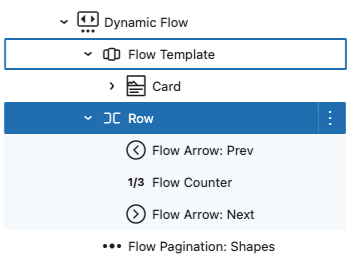
Dynamic Flow uses child blocks to build your carousel. You can mix these with any WordPress blocks.

Flow Template

The template block defines what each slide looks like. Design it once, and it applies to all query results.

Inside Flow Template, you can add any WordPress blocks:

  • Heading, Paragraph, Image
  • Buttons, Groups, Columns
  • Your theme’s blocks
  • Other Groundworx blocks like Card or Media Card

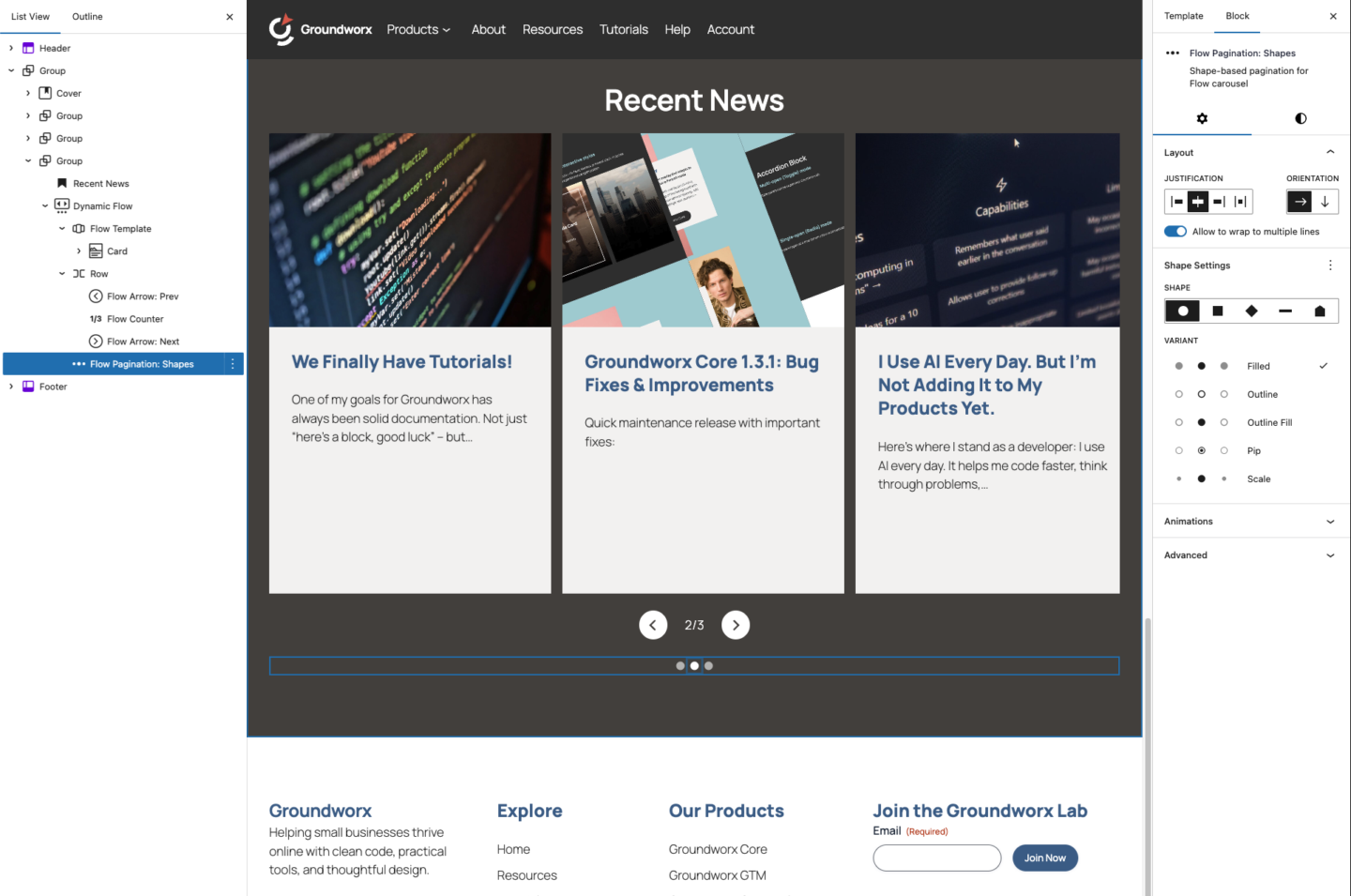
Add these inside Dynamic Flow or Static Flow to control how users navigate:

Previous and next slide buttons. Automatically inherits your theme’s default button styles from theme.json. Customize further with colors, spacing, and border radius.

Dot/bullet indicators showing which slide is active. Choose from multiple shape options and customize colors.

Clickable slide numbers (1, 2, 3…). Users can jump directly to any slide. Automatically inherits your theme’s default button styles from theme.json.

Displays slide position as text. Options include:

  • Prefix – Text before the counter (e.g., “Slide “)
  • Separator – Character between current and total (default: “/”)
  • Suffix – Text after the counter (e.g., ” of collection”)
  • Show Total – Toggle to show or hide the total count

Example outputs: “1/5”, “Slide 2 of 10”, “3 / 8 items”

Animated progress bar that adapts to your carousel settings:

  • Height – Customize the bar thickness
  • Standard mode – Shows percentage of slides viewed (e.g., viewing slide 3 of 5 = 60%)
  • With Autoplay – Fills during the autoplay interval, resets when slide advances
  • With Auto Scroll – Continuously fills as the carousel scrolls, synced to scroll position

Mixing with WordPress Blocks

Navigation blocks can be placed anywhere inside Dynamic Flow or Static flow—above, below, or beside the slides. Wrap them in Groups or Columns for custom layouts.

Example: Place arrows on the left and right edges using a Columns block, with dot pagination centered below.
Example Use Cases

Blog Featured Posts: Display your 5 most recent posts from a “Featured” category on your homepage.

Product Showcase: Show WooCommerce products from a specific category with automatic updates when you add new products.

Team Members: Create a custom post type for team members and display them in a carousel on your About page.

Testimonials: Pull from a testimonials post type, ordered randomly to show different reviews each visit.

Optional: Customize with theme.json

This is optional—Dynamic Flow works great with default styling.

Dynamic Flow inherits your theme’s styles automatically. If you want to customize the look of carousel buttons and pagination, you can use theme.json.

Global button styles affect arrow buttons and pagination:

{
  "styles": {
    "elements": {
      "button": {
        "color": {
          "background": "var(--wp--preset--color--primary)",
          "text": "var(--wp--preset--color--white)"
        },
        "border": {
          "radius": "4px"
        }
      }
    }
  }
}

Block-level styles let you target only Dynamic Flow:

{
  "styles": {
    "blocks": {
      "groundworx/dynamic-flow": {
        "elements": {
          "button": {
            "color": {
              "background": "var(--wp--preset--color--secondary)"
            },
            "border": {
              "radius": "50%"
            }
          }
        }
      }
    }
  }
}

Next Steps

  • Experiment with different query configurations
  • Try combining Dynamic Flow with other Groundworx blocks
  • Check how the carousel responds on mobile devices